How to print PDF Documents in C# and .NET using Adobe, Foxit
Printing PDF documents is one of the most common tasks in the development of enterprise applications, document management systems, and business process automation. In this article, we will look at how to implement PDF printing in C# and the platform.NET, using popular tools: Adobe, Foxit, and the SautinSoft Document .NET library.
In modern business, document automation is becoming an integral part of improving efficiency. The ability to automatically print PDF reports, invoices, contracts, and other documents is convenient, time—saving, and error-reducing. In addition, such solutions are in demand in accounting systems, logistics, medical information systems and various portals. There are often situations when it is necessary to organize mass printing, integrate printing into workflows, or provide documentation management without user involvement.
Step-by-step guide:
- Add SautinSoft.Document from Nuget.
- Create a new document.
- Add a content.
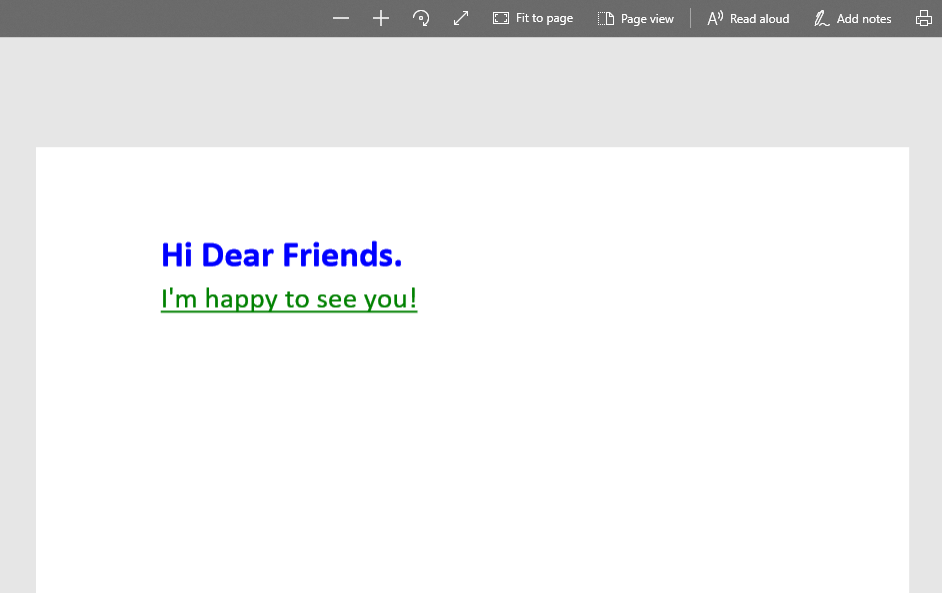
- Save the document as PDF.
- Print our PDF using the Adobe Reader.
             // Let's create a simple PDF document.
            DocumentCore dc = new DocumentCore();

            // Add new section.
            Section section = new Section(dc);
            dc.Sections.Add(section);

            // Let's set page size A4.
            section.PageSetup.PaperType = PaperType.A4;

            // Add a paragraph using ContentRange:
            dc.Content.End.Insert("\nHi Dear Friends.", new CharacterFormat() { Size = 25, FontColor = Color.Blue, Bold = true });
            SpecialCharacter lBr = new SpecialCharacter(dc, SpecialCharacterType.LineBreak);
            dc.Content.End.Insert(lBr.Content);
            dc.Content.End.Insert("I'm happy to see you!", new CharacterFormat() { Size = 20, FontColor = Color.DarkGreen, UnderlineStyle = UnderlineType.Single });

            // Save PDF to a file
            dc.Save(pdfPath, new PdfSaveOptions());
                      string processFilename = Microsoft.Win32.Registry.LocalMachine
                     .OpenSubKey("Software")
                     .OpenSubKey("Microsoft")
                     .OpenSubKey("Windows")
                     .OpenSubKey("CurrentVersion")
                     .OpenSubKey("App Paths")
                     .OpenSubKey("AcroRd32.exe")
                     .GetValue(String.Empty).ToString();
And the last step is printing the PDF.
            // Let's transfer our PDF file to the process Adobe Reader
            ProcessStartInfo info = new ProcessStartInfo();
            info.Verb = "print";
            info.FileName = processFilename;
            info.Arguments = String.Format("/p /h {0}", pdfPath);
            info.CreateNoWindow = true;

            //(It won't be hidden anyway... thanks Adobe!)
            info.WindowStyle = ProcessWindowStyle.Hidden;
            info.UseShellExecute = false;

            Process p = Process.Start(info);
            p.StartInfo.WindowStyle = ProcessWindowStyle.Hidden;
Well done!
Complete code
 GitHub
using SautinSoft.Document;
using System;
using System.IO;
using System.Text;
using System.Diagnostics;
namespace Example
{
class Program
{
static void Main(string[] args)
{
CreateAndPrintPdf();
}
/// <summary>
/// Creates a new document and saves it into PDF format. Print PDF using your default printer.
/// </summary>
/// <remarks>
/// Details: https://www.sautinsoft.com/products/document/help/net/developer-guide/from-customers-print-pdf-csharp-vb-net.php
/// </remarks>
public static void CreateAndPrintPdf()
{
// Set the path to create pdf document.
string pdfPath = @"Result.pdf";
// Let's create a simple PDF document.
DocumentCore dc = new DocumentCore();
// Add new section.
Section section = new Section(dc);
dc.Sections.Add(section);
// Let's set page size A4.
section.PageSetup.PaperType = PaperType.A4;
// Add a paragraph using ContentRange:
dc.Content.End.Insert("\nHi Dear Friends.", new CharacterFormat() { Size = 25, FontColor = Color.Blue, Bold = true });
SpecialCharacter lBr = new SpecialCharacter(dc, SpecialCharacterType.LineBreak);
dc.Content.End.Insert(lBr.Content);
dc.Content.End.Insert("I'm happy to see you!", new CharacterFormat() { Size = 20, FontColor = Color.DarkGreen, UnderlineStyle = UnderlineType.Single });
// Save PDF to a file
dc.Save(pdfPath, new PdfSaveOptions());
// Create a new process: Acrobat Reader. You may change in on Foxit Reader.
string processFilename = Microsoft.Win32.Registry.LocalMachine
.OpenSubKey("Software")
.OpenSubKey("Microsoft")
.OpenSubKey("Windows")
.OpenSubKey("CurrentVersion")
.OpenSubKey("App Paths")
.OpenSubKey("Acrobat.exe")
.GetValue(String.Empty).ToString();
// Let's transfer our PDF file to the process Adobe Reader
ProcessStartInfo info = new ProcessStartInfo();
info.Verb = "print";
info.FileName = processFilename;
info.Arguments = String.Format("/p /h {0}", pdfPath);
info.CreateNoWindow = true;
//(It won't be hidden anyway... thanks Adobe!)
info.WindowStyle = ProcessWindowStyle.Hidden;
info.UseShellExecute = false;
Process p = Process.Start(info);
p.StartInfo.WindowStyle = ProcessWindowStyle.Hidden;
// Print our PDF
int counter = 0;
while (!p.HasExited)
{
System.Threading.Thread.Sleep(1000);
counter += 1;
if (counter == 5) break;
}
if (!p.HasExited)
{
p.CloseMainWindow();
p.Kill();
}
// Open the result for demonstration purposes.
System.Diagnostics.Process.Start(new System.Diagnostics.ProcessStartInfo(pdfPath) { UseShellExecute = true });
}
}
}Imports Microsoft.VisualBasic
Imports SautinSoft.Document
Imports System
Imports System.IO
Imports System.Text
Imports System.Diagnostics
Namespace Example
Friend Class Program
Shared Sub Main(ByVal args() As String)
CreateAndPrintPdf()
End Sub
''' <summary>
''' Creates a new document and saves it into PDF format. Print PDF using your default printer.
''' </summary>
''' <remarks>
''' Details: https://www.sautinsoft.com/products/document/help/net/developer-guide/from-customers-print-pdf-csharp-vb-net.php
''' </remarks>
Public Shared Sub CreateAndPrintPdf()
' Set the path to create pdf document.
Dim pdfPath As String = "Result.pdf"
' Let's create a simple PDF document.
Dim dc As New DocumentCore()
' Add new section.
Dim section As New Section(dc)
dc.Sections.Add(section)
' Let's set page size A4.
section.PageSetup.PaperType = PaperType.A4
' Add a paragraph using ContentRange:
dc.Content.End.Insert(vbLf & "Hi Dear Friends.", New CharacterFormat() With {
.Size = 25,
.FontColor = Color.Blue,
.Bold = True
})
Dim lBr As New SpecialCharacter(dc, SpecialCharacterType.LineBreak)
dc.Content.End.Insert(lBr.Content)
dc.Content.End.Insert("I'm happy to see you!", New CharacterFormat() With {
.Size = 20,
.FontColor = Color.DarkGreen,
.UnderlineStyle = UnderlineType.Single
})
' Save PDF to a file
dc.Save(pdfPath, New PdfSaveOptions())
' Create a new process: Acrobat Reader. You may change in on Foxit Reader.
Dim processFilename As String = Microsoft.Win32.Registry.LocalMachine.OpenSubKey("Software").OpenSubKey("Microsoft").OpenSubKey("Windows").OpenSubKey("CurrentVersion").OpenSubKey("App Paths").OpenSubKey("Acrobat.exe").GetValue(String.Empty).ToString()
' Let's transfer our PDF file to the process Adobe Reader
Dim info As New ProcessStartInfo()
info.Verb = "print"
info.FileName = processFilename
info.Arguments = String.Format("/p /h {0}", pdfPath)
info.CreateNoWindow = True
'(It won't be hidden anyway... thanks Adobe!)
info.WindowStyle = ProcessWindowStyle.Hidden
info.UseShellExecute = False
Dim p As Process = Process.Start(info)
p.StartInfo.WindowStyle = ProcessWindowStyle.Hidden
' Print our PDF
Dim counter As Integer = 0
Do While Not p.HasExited
System.Threading.Thread.Sleep(1000)
counter += 1
If counter = 5 Then
Exit Do
End If
Loop
If Not p.HasExited Then
p.CloseMainWindow()
p.Kill()
End If
' Open the result for demonstration purposes.
System.Diagnostics.Process.Start(New System.Diagnostics.ProcessStartInfo(pdfPath) With {.UseShellExecute = True})
End Sub
End Class
End Namespace
If you need a new code example or have a question: email us at support@sautinsoft.com or ask at Online Chat (right-bottom corner of this page).